
When an agent answers a call, the customer’s history should be close at hand. Integrating Zoom Contact Center with HubSpot can bring call controls and customer records into the same workflow, helping agents find the right contact, record the interaction and follow up after the call.
We recently completed this integration as part of a contact centre deployment, following Zoom’s official guides, Setting up the Zoom Contact Center HubSpot Integration and Using Zoom Contact Center for HubSpot integration. Both are detailed and worth reading before you begin. While the core setup is straightforward, several account requirements and recording behaviours are easy to overlook. This article complements Zoom’s guidance by highlighting those requirements and behaviours, and the things to be aware of that can save a lot of time troubleshooting.
How the integration works
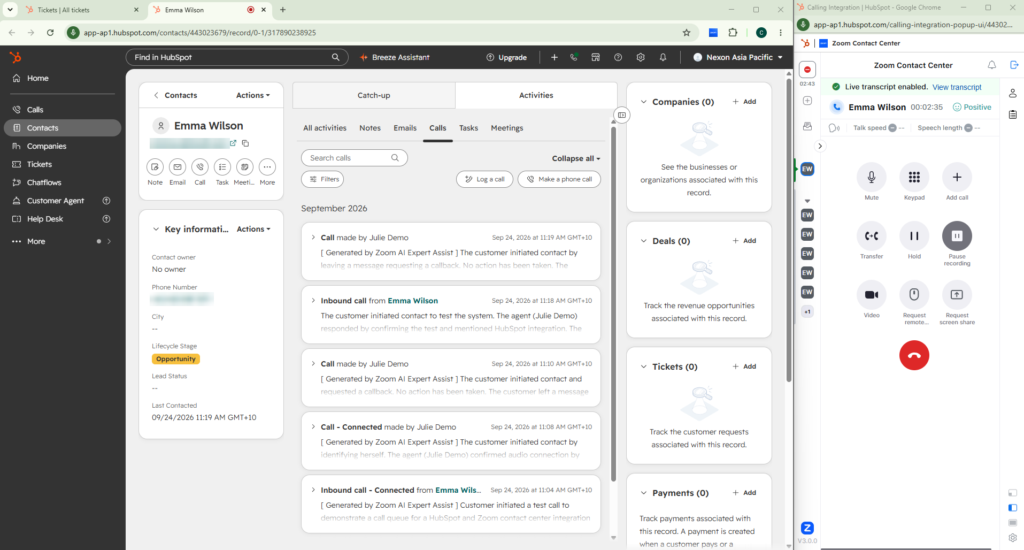
The Zoom Contact Center integration lets agents handle voice calls through a calling window connected to HubSpot. Depending on the configuration, an incoming call can bring up a matching customer record. Agents can also place outbound calls from HubSpot and have call activity logged against the relevant record.
For our deployment, the goal was to keep the customer interaction visible in HubSpot, including call activity, notes and disposition, while giving supervisors an appropriate way to access recordings in Zoom.
Preparing your environment
Before starting, check that you have:
• A supported Zoom account with Zoom Contact Center licences for the agents.
• The required Zoom administration privileges and a HubSpot system administrator account.
• A decision on which agents will use the integration and how calls should be logged.
• A recording access policy: who should be able to see a recording link, and who should be able to play the recording.
Account enablement: Zoom may need to activate the integration on your account. Check Admin Center → CX Management → Contact Center → Integrations. If HubSpot is unavailable when you add an integration, contact Zoom Support and ask them to enable the HubSpot integration feature for the account. In our deployment, this request had to be completed before configuration could continue, so it is worth raising with Zoom early in the project.
Connecting Zoom Contact Center and HubSpot
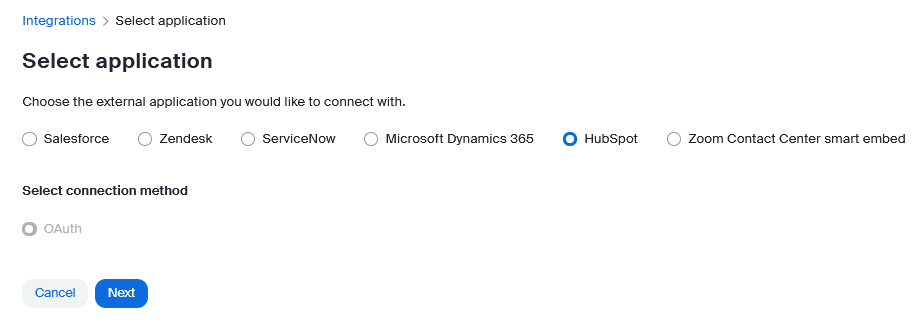
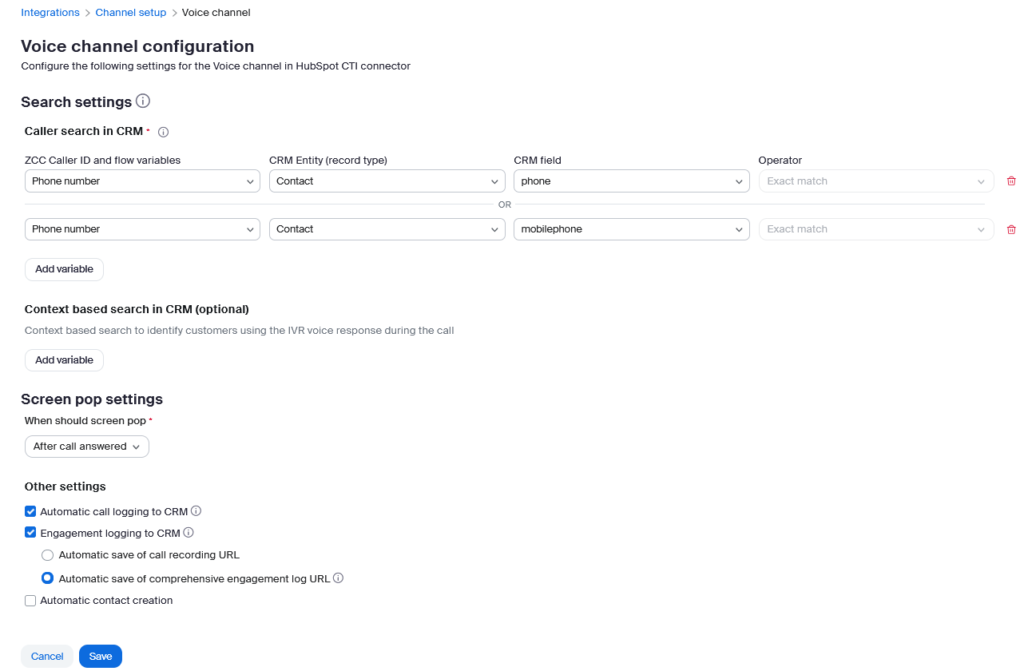
Once the feature is available, sign in to HubSpot, then open the Integrations page in the Zoom admin portal. Add HubSpot, select the correct HubSpot account and approve the connection. Choose the Voice channel and work through its configuration, including how callers are matched to HubSpot records and whether calls are logged automatically.
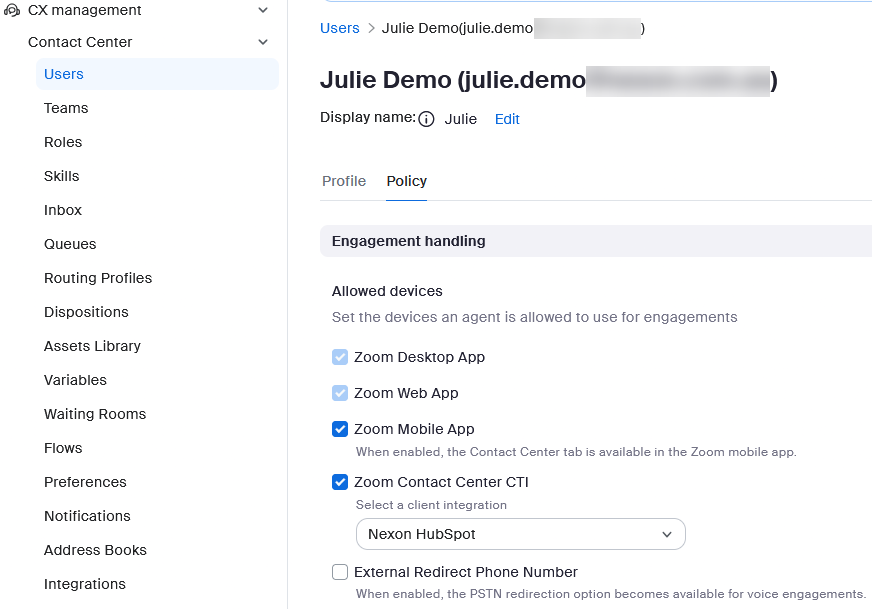
Next, open each participating user’s Policy tab and, under Engagement handling → Allowed devices, enable Zoom Contact Center CTI. Then choose your HubSpot integration from Select a client integration. Test with an agent account as well as the administrator account; a successful connection at the account level does not complete the user setup. Zoom recommends signing in to HubSpot before beginning the connection process.
Setting up the agent experience
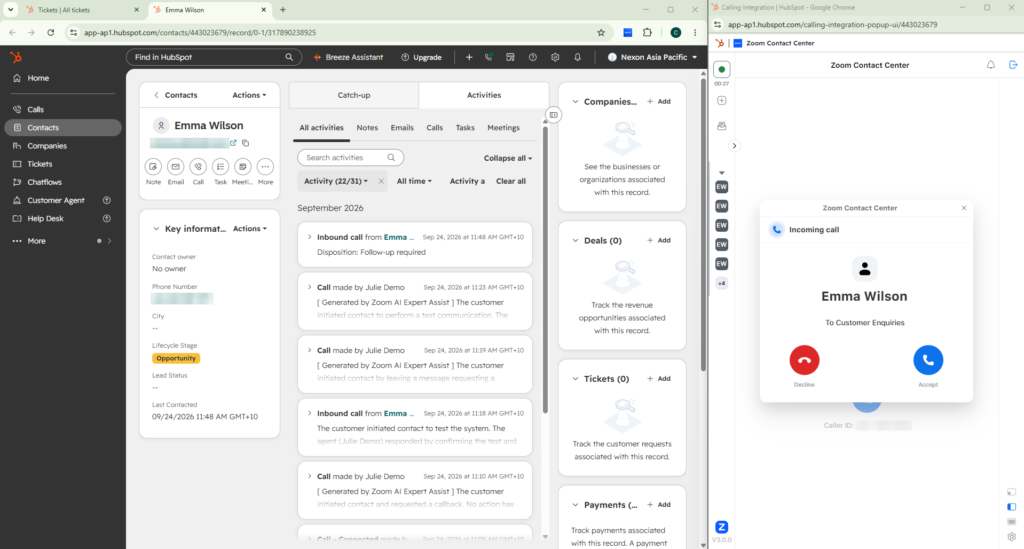
In HubSpot, agents select Zoom Contact Center as their calling provider and open the calling window. The window needs to stay open during their work session. For the WebRTC experience, Chrome and Edge users need the Zoom Contact Center CTI browser extension, and the WebRTC window must remain open. Check browser permissions for pop-ups and redirects during testing.
Run a test call to a known contact, a number that matches multiple contacts and an unknown number. This shows agents what they will actually see when HubSpot finds one record, offers several matches or finds none.
Things to be aware of that can save troubleshooting time
Call logging and recording access are managed separately
Automatic call logging can create a useful activity in HubSpot, but it does not determine who can play the associated recording. Zoom also offers an Automatic save of recording URL setting. Decide whether that URL should be written to the HubSpot activity, then test the experience using accounts with different permissions.
In our testing, the customer wanted call activity, Smart Notes and disposition visible in HubSpot, while controlling who could play recordings. The HubSpot Native Recording Player is not enabled by default. We initially asked Zoom to enable it so that recordings could be played directly within the HubSpot call activity.
Disabling the HubSpot native recording player improves access control by moving recording access to Zoom. HubSpot call activities will contain a recording link rather than an embedded player, ensuring access is managed through Zoom Contact Center security roles and permissions.
Call logging, notes and disposition still appear in HubSpot. We recommend leaving the native player disabled unless every HubSpot user should be able to hear every recording, and testing the recording link with each role that will use it.
Test with each user role
An administrator’s successful test does not confirm that agents or supervisors will get the intended result. Use separate agent and supervisor accounts to confirm:
- The call appears against the expected HubSpot record.
- Notes and disposition appear where staff expect them.
- The recording link is present when required.
- Playback follows the agreed access policy.
- The supervisor can reach the recording through the intended workflow.
Record the results for both inbound and outbound calls. Documented results make it much easier to describe a specific issue to Zoom Support and can shorten the time needed to resolve it.
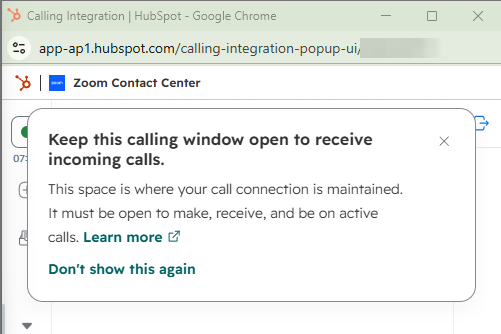
Keep the calling window open
Closing the HubSpot calling window can affect incoming and ongoing engagements. Include this in agent training, along with the WebRTC window and browser extension requirements. Although this is a small operational detail, a closed window can easily be mistaken for an intermittent integration fault, so it is one of the first things to check when agents report missed or dropped calls.
Summary
Zoom Contact Center and HubSpot can give agents a more connected calling and CRM experience when the integration is planned carefully. The best results come from planning the agent workflow and recording permissions before rollout, arranging any account enablement with Zoom early, and testing the complete call journey with real user roles.
Explore Nexon’s Unified Communications solutions or contact us today to discuss how we can help create a more connected communication experience for your organisation.